
 Crawvix Editorial Team
· Published October 28, 2026 · Last updated October 27, 2026 · 2 min read
Crawvix Editorial Team
· Published October 28, 2026 · Last updated October 27, 2026 · 2 min read
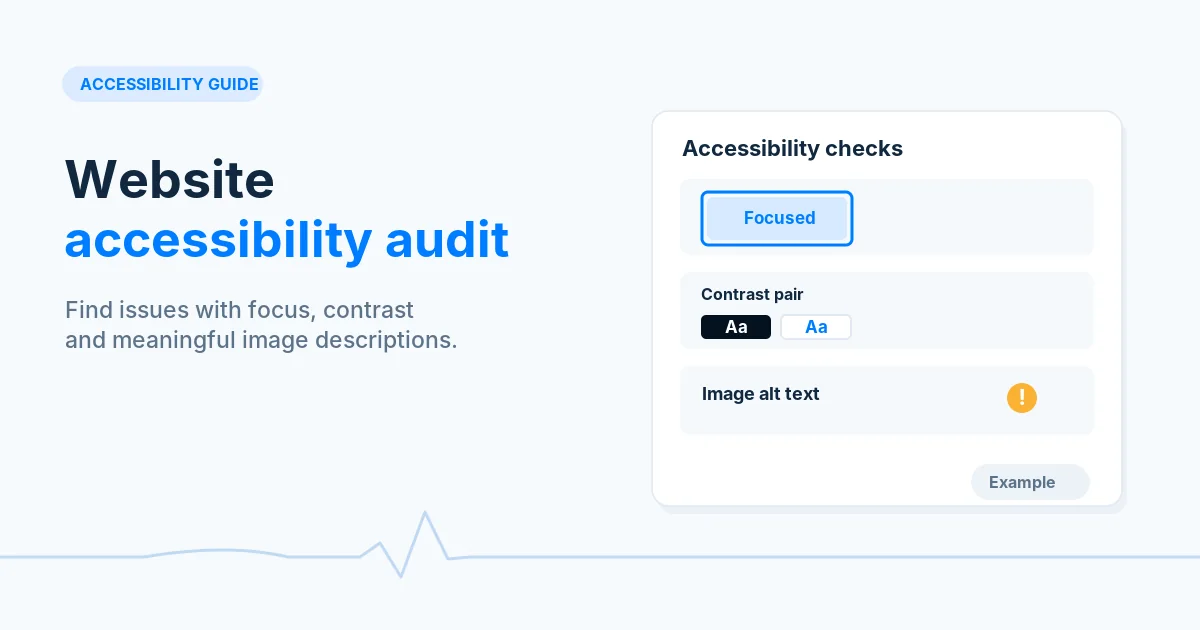
Accessibility is about making a website usable for people with different needs, not chasing a perfect automatic testing score. Automated audits can catch many issues, but manual testing remains essential.
Before you begin
You will need access to the website or account involved, a list of important public URLs, and permission to make the relevant changes. Save a backup of configuration before editing DNS, server rules, source code or search settings. A successful check means the specified condition was verified—not that Google or Bing will index or rank the page.
Step-by-step instructions
Step 1: Run automated checks
Use Lighthouse and an established accessibility testing tool such as axe on representative pages. Record specific elements, rules and evidence instead of a single site-wide percentage.
What success looks like: Each reported issue points to an element and reproducible behavior.
Step 2: Test keyboard navigation
Move through the site using Tab, Shift+Tab, Enter and Escape. Confirm focus visibility, sensible order, menus, dialogs and forms.
What success looks like: Critical workflows work without a mouse.
Step 3: Fix names and semantics
Ensure form inputs have useful labels, buttons have accessible names, headings are structured and informative images have meaningful alt text.
What success looks like: Assistive technologies can identify purpose and relationships.
Step 4: Review contrast and responsiveness
Check text contrast, zoom/reflow, touch target sizes and error messages. Validate with actual visual inspection, not just a passing tool score.
What success looks like: Content remains readable and actionable on small screens or zoom.
Step 5: Retest with human judgement
Run the automated suite again, test keyboard flows and ideally involve assistive technology users. Document remaining issues and maintenance responsibility.
What success looks like: The fixes are confirmed by both tests and user-centered review.
Final verification checklist
Each reported issue points to an element and reproducible behavior.
Critical workflows work without a mouse.
Assistive technologies can identify purpose and relationships.
Content remains readable and actionable on small screens or zoom.
The fixes are confirmed by both tests and user-centered review.
Common mistakes to avoid
Calling Lighthouse 100 a legal compliance certificate.
Writing alt text that says image without conveying meaning.
Removing focus outlines for aesthetic reasons.
Frequently asked questions
Is Lighthouse accessibility score enough?
No. It covers only a subset of accessibility concerns.
Can AI guarantee WCAG compliance?
No. A reliable process includes manual testing and expert judgement.
Related guides
Official references
Next step: See how Crawvix checks a website and capture a baseline once scanning opens. This guide provides technical information, not a guarantee of rankings, 100-point Lighthouse scores or index inclusion.