
 Crawvix Editorial Team
· Published October 28, 2026 · Last updated November 1, 2026 · 11 min read
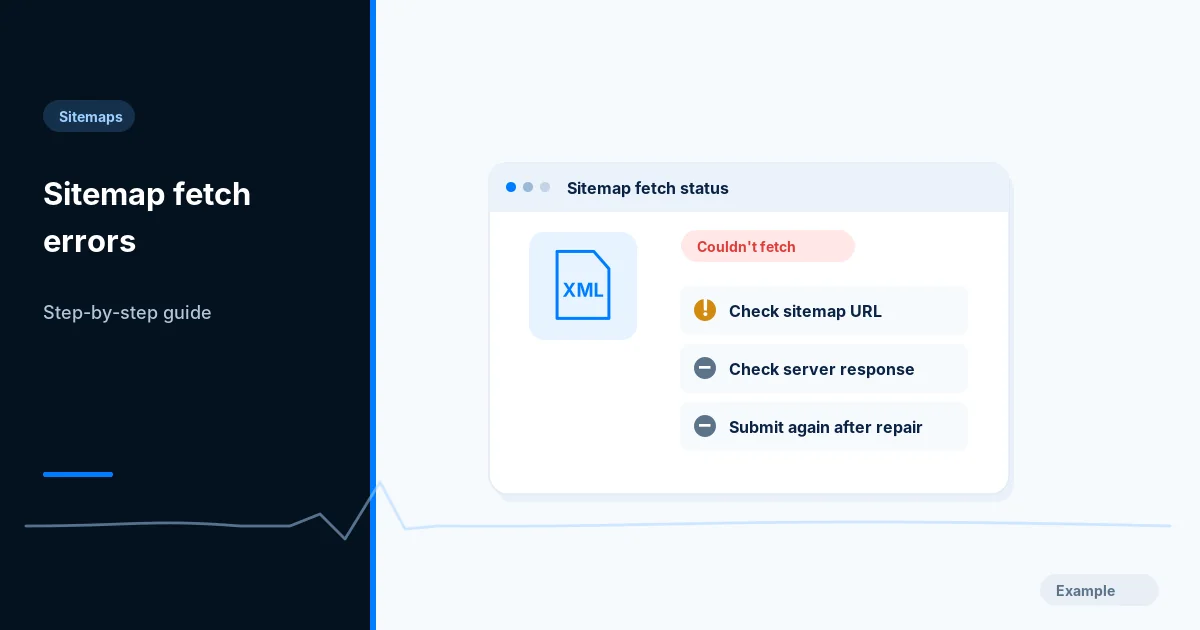
You submitted a sitemap in Google Search Console and the Sitemaps report answers with a red status: "Couldn't fetch" or "Sitemap could not be read". Neither message tells you what actually went wrong, and both look alarming. Usually the cause is ordinary: a wrong address, a redirect, a firewall that turns Google away, or a small mistake in the XML.
This guide is for site owners and developers who want to find the real cause rather than resubmit the file again and again. By the end you will know what each status means, how to fetch the file the way a crawler would, which causes are most common, how to fix each one and how to resubmit once it is fixed.
Search Console reports what happened when Google tried to retrieve and parse the file. It does not say your pages are excluded from Google, because pages can still be discovered through links.
Before you begin
You will need access to the property in Google Search Console, the ability to read the web server or CDN settings, and a command line with curl, or a browser if you prefer. Note down the sitemap address exactly as it appears in the report. If you do not yet have a sitemap, start with how to create an XML sitemap.
A successful check in this guide means a condition was verified, not that Google will index or rank anything.
What the Search Console statuses mean
In the Sitemaps report, the Status column for each submitted file shows one of these:
- Success. Google fetched the file and parsed it. Any problems with individual URLs appear elsewhere, such as in the page indexing report.
- Has errors. Google read the file, but it contains problems. Opening the report row shows the error types, often with an example line.
- Couldn't fetch. Google could not retrieve the file. This is a retrieval problem: the address, the response, the network path or access rules.
- Sitemap could not be read. Google got something back but could not process it as a sitemap. Think of this as a parsing or content problem: invalid XML, the wrong kind of document or an unsupported format.
"Pending" is not an error; a freshly submitted sitemap can show it for a while, and Google does not publish a fixed processing time.
For "Couldn't fetch", start with the HTTP response. For "Sitemap could not be read", start with the content. The steps below cover both.
Step 1: Record the exact failing address
Open Sitemaps in Search Console and note the full sitemap URL, the status and the "last read" date. Look closely at the URL. A typo, a different host (example.com against www.example.com), http:// instead of https:// or a leftover staging domain explains many failures.
If you are unsure which property type you have, read domain property vs URL-prefix property. For setup help, see setting up Google Search Console.
What success looks like: you have the exact failing address, the status wording and the date of the last attempt.
Step 2: Fetch the address yourself
Request the exact address and look at what comes back. From a command line:
curl -sIL https://www.example.com/sitemap.xml
The -I flag asks for headers only, -L follows redirects and -s hides the progress bar. Read the output from the top:
- The status line should end in
200. - Every
Location:header is a redirect. More than one means a chain. - The
Content-Typeshould be an XML type such asapplication/xmlortext/xml. A value oftext/htmlsuggests an HTML page is being served instead.
To see the body, run curl -sL https://www.example.com/sitemap.xml | head -n 20. The first characters should be <?xml followed by <urlset or <sitemapindex. If you see a login form, a "Just a moment" challenge page or an error message, you have found the problem.
What success looks like: a single 200 response with XML content and no redirect.
Step 3: Fix the HTTP status
The response code tells you which fix you need.
404 Not Found. The file is not at that address. Confirm where your generator actually writes it; a plugin update or permalink change can move it. Fix the address in the report or publish the file where you submitted it. A 404 page served with status 200 is a soft error and cannot be parsed either.
401 or 403. The server is refusing the request. This often means HTTP authentication on a staging or pre-launch site, a security plugin or a firewall rule. Remove the restriction from the sitemap path.
429 or 503. Too many requests or a temporary overload. Rate limits that are too strict may refuse crawler traffic, so review them.
500 and other 5xx. The server failed while building the response. Dynamic sitemaps are generated on request, and a database timeout or an exception in the code can break them. Check the error log, and see HTTP 500 errors and SEO. If the generation is heavy, write the file to disk on a schedule and serve it as a static file.
Slow responses and timeouts. A sitemap that takes many seconds to build may time out. Generate it ahead of time; uptime monitoring (see website uptime monitoring and SEO) shows intermittent failures.
TLS and certificate errors. If the certificate is expired, mismatched or incomplete, a fetch can fail before any content is returned. Test the address in a browser and see SSL certificate errors and SEO.
What success looks like: the sitemap address returns 200 for an anonymous request, consistently.
Step 4: Remove redirects and mixed hosts
A redirect on the sitemap address is not always fatal, but it is a common source of trouble, especially when it points to a different host. Typical cases:
- The submitted address is
http://example.com/sitemap.xmland the site redirects tohttps://www.example.com/sitemap.xml. Submit the final address instead. - A redirect loop between
wwwand non-www, or HTTP and HTTPS. See redirect chains and loops.
The sitemap must live on the same host and protocol as the URLs it lists. A sitemap on https://www.example.com that lists https://example.com pages, or lists http:// pages, may be reported with errors such as URLs not allowed. Decide on one canonical host as described in www vs non-www and, if you are still moving to HTTPS, in the HTTP to HTTPS migration guide.
What success looks like: you submit the final address, and the request needs no redirects.
Step 5: Check firewalls, CDNs and bot protection
If the file loads for you but Google reports "Couldn't fetch", suspect something that treats crawlers differently from people. Common causes:
- A bot protection or "under attack" mode that serves a challenge page to unknown clients. The response is often an HTML page with status 200, which then fails to parse.
- A firewall rule, country block or hosting rate limit that catches crawler traffic.
- Security plugins that block by user agent.
To approximate a crawler request, send the Googlebot user agent string:
curl -sI -A "Mozilla/5.0 (compatible; Googlebot/2.1; +http://www.google.com/bot.html)" https://www.example.com/sitemap.xml
This is only a rough test, because firewalls often judge crawlers by network address rather than the user agent. The reliable way to review is to check your CDN or firewall logs for blocked requests to the sitemap path. Never allow-list a crawler by user agent alone, since anyone can fake it; the safe method is explained in verifying Googlebot and Bingbot. For Cloudflare-specific rules, see Cloudflare and bot blocking.
A robots.txt rule that disallows the sitemap path is another thing to rule out. Open https://www.example.com/robots.txt and confirm no Disallow line matches the sitemap. See robots.txt blocking search engines.
What success looks like: your firewall and CDN logs show the sitemap path being allowed.
Step 6: Validate the XML
If the status is "Sitemap could not be read" or "Has errors", the file was probably retrieved. Now test it as XML. The simplest tool is xmllint, which ships with libxml2:
curl -s https://www.example.com/sitemap.xml | xmllint --noout -
No output means the file is well-formed. Otherwise you get a line and column. Common problems:
- Unescaped ampersands. A bare
&in a URL breaks the XML. Write&. - Whitespace or a byte-order mark before
<?xml. The declaration must be the very first thing in the file. - A missing or wrong namespace. The root must be
<urlset xmlns="http://www.sitemaps.org/schemas/sitemap/0.9">, or<sitemapindex ...>with the same namespace for an index. - Relative URLs. Each
<loc>needs the full address with protocol and host. - Unclosed or mismatched tags, often from a template that stopped halfway after an error.
- HTML instead of XML. An error page served at the sitemap address.
- Wrong encoding or a broken gzip file. Use UTF-8, remove control characters, and test that a
.gzfile decompresses.
If the file is a sitemap index, test every child sitemap too, since a missing child produces errors in the report even when the index parses. See splitting large sitemaps into an index. For a clean reference file, see how to create an XML sitemap.
Crawvix's scan checks that the sitemap is valid and that its URLs are healthy (the checks titled "Sitemap is valid" and "Sitemap URLs are healthy").
What success looks like: a strict parser reports no errors and every <loc> is an absolute URL on the same host.
Step 7: Check the size limits
A single file may hold at most 50,000 URLs and 50 MB uncompressed; compressing does not change that. Beyond either limit, split the file and describe the pieces with a sitemap index.
Step 8: Resubmit after a real fix
Once the file returns 200 with valid XML, open the Sitemaps report and resubmit it, or wait for Google to retry. Run a live test on the sitemap URL with the URL Inspection tool if you want a fresh view of what Google sees; see the URL Inspection live test.
Keep a dated note of what you changed, and do not conclude the fix failed after a few minutes. Resubmitting without changing anything does not help.
What success looks like: the report reaches "Success", or shows a more specific error you can act on.
Troubleshooting special cases
The sitemap opens in my browser, but Google says "Couldn't fetch". Browsers send cookies, accept challenges and come from your own network. Test from a clean environment such as a private window, a different network and the Googlebot user agent in curl. Then look at firewall and CDN logs, which show what the crawler received.
The error appeared right after I submitted a new sitemap. Some site owners see "Couldn't fetch" on first submission even though the file is fine. If every check passes, wait, then resubmit. If it persists for days with a clean response, ask in the Google Search Central help community with the exact URL and what you verified.
It worked before and now fails. Look for recent changes: a plugin update, a new firewall rule, a CDN setting, a redirect, a migration or an expired certificate. Server logs, covered in log file analysis for SEO, show whether Googlebot requested the file and what it received.
Final verification checklist
- The submitted address matches the real address, host and protocol.
- The address returns 200 without redirects to an anonymous request, and the body is XML.
- The XML is well-formed with absolute URLs on the same host, within 50,000 URLs and 50 MB.
- Firewalls, CDNs and robots.txt do not block the sitemap path.
- The sitemap was resubmitted after the fix, with the result recorded.
Common mistakes to avoid
- A 200 response that delivers a human-readable error page. It looks healthy but cannot be parsed.
- A sitemap index that points to a deleted location. Check each child.
- Resubmitting repeatedly without fixing the cause. It does not change what Google receives.
- Reading the error as a penalty. It is a retrieval or parsing report, not a ranking judgement.
Frequently asked questions
Why can I open the sitemap but Google cannot?
Differences in user agent, network address, cookies, geography, redirects and timing can all explain it. A firewall or bot protection layer that challenges unknown clients is the usual culprit.
What is the difference between "Couldn't fetch" and "Sitemap could not be read"?
"Couldn't fetch" points to a retrieval problem, such as a wrong address, an error status or blocked access. "Sitemap could not be read" points to content Google received but could not process, such as invalid XML or an unsupported document.
Does "Couldn't fetch" mean my pages are not indexed?
No. The report is about the sitemap file. Pages can still be found through links and other signals, and a failing sitemap does not remove indexed pages.
Can robots.txt cause a sitemap error?
It can if a Disallow rule matches the sitemap path. Listing the sitemap with a Sitemap: line in robots.txt is fine, but the file itself should not be disallowed.
What does "Has errors" mean?
Google read the sitemap but found problems in it, such as invalid entries or URLs it is not allowed to accept. Open the row in the report to see the error types and example lines.
Do I need to resubmit after fixing the sitemap?
Usually yes, to prompt a new attempt, but only after the response and XML are verified. Resubmitting without a fix changes nothing.
Official references
- Google Search Central: Build and submit a sitemap
- Google Search Console Help: Sitemaps report
- Sitemaps.org: The sitemap protocol
- Google Search Central: Verifying Googlebot
Related guides
- How to Create an XML Sitemap
- Split Large Sitemaps into a Sitemap Index Without Errors
- Find and Fix 404 and 500 Errors in XML Sitemaps
- Cloudflare and Bot Blocking for Google and Bing
This guide gives technical information. It does not promise rankings or index inclusion. To see how a real site looks to a scan, try the free website sample.